Variables allow you to introduce configurability into your simulation. These can do pretty much anything you can imagine. For example, think of easy configurability, an int variable can represent a droprate that you can easily modify to rapidly test and get results. Another example would be a boolean variable that, when TRUE, unlocks different parts of your simulation. Another example is the Array<int>, which could be an inventory.
Variables start off with their default values, set in the Variables object. During the Simulation, Variables can be modified through the Adjust Variable Node. These changes persist through the simulation and are reset automatically on simulation completion.
When simulating multiple runs, each run has its own set of variables, so you don't have to worry about variables bleeding over in other runs, it is run specific.
Variables Inspector
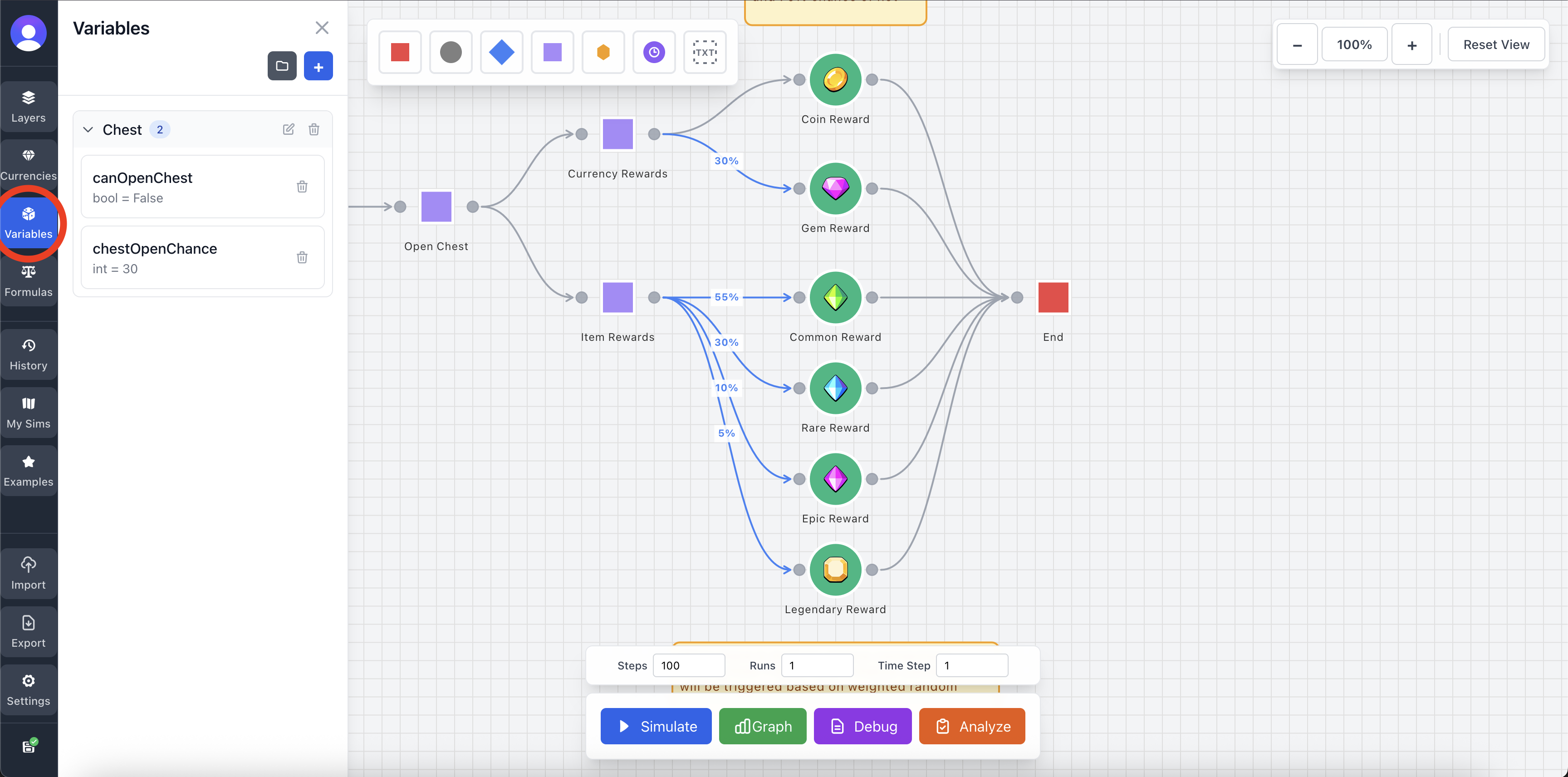
The inspector can be opened by clicking the Variables button in the left-hand side of the screen. This will present you with an overview of all the variables in your workspace.
Adding a Variable
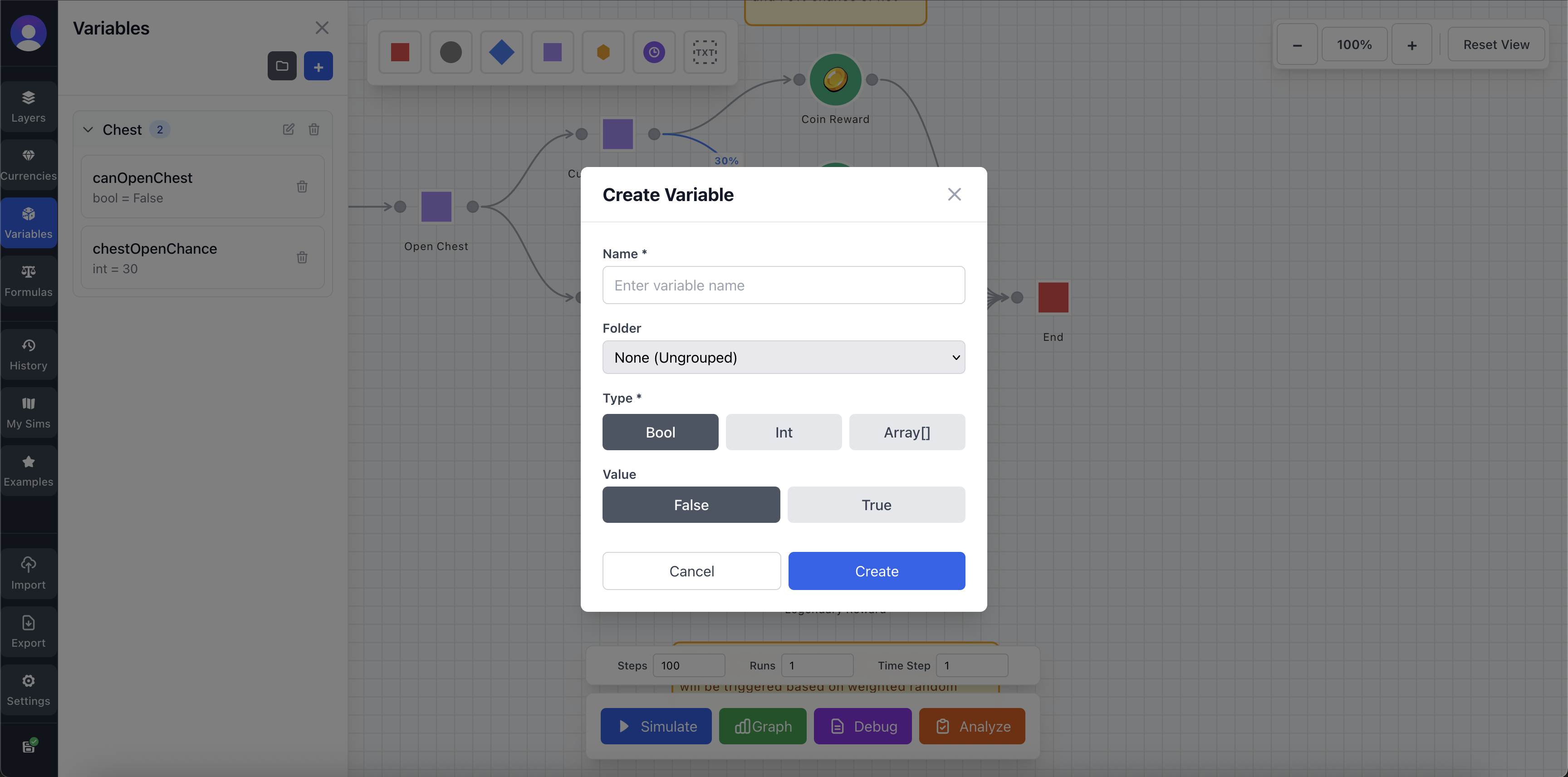
To add a variable simply press the "+" button in the Variables Inspector. This will bring up the "Create Variable" Screen. Simply add the desired settings and click Create at the bottom-right.
Editing Variables
You can edit the variable, which will show the "Edit Variable" screen by clicking a variable card in the Variable Inspector.
Organizing Variables
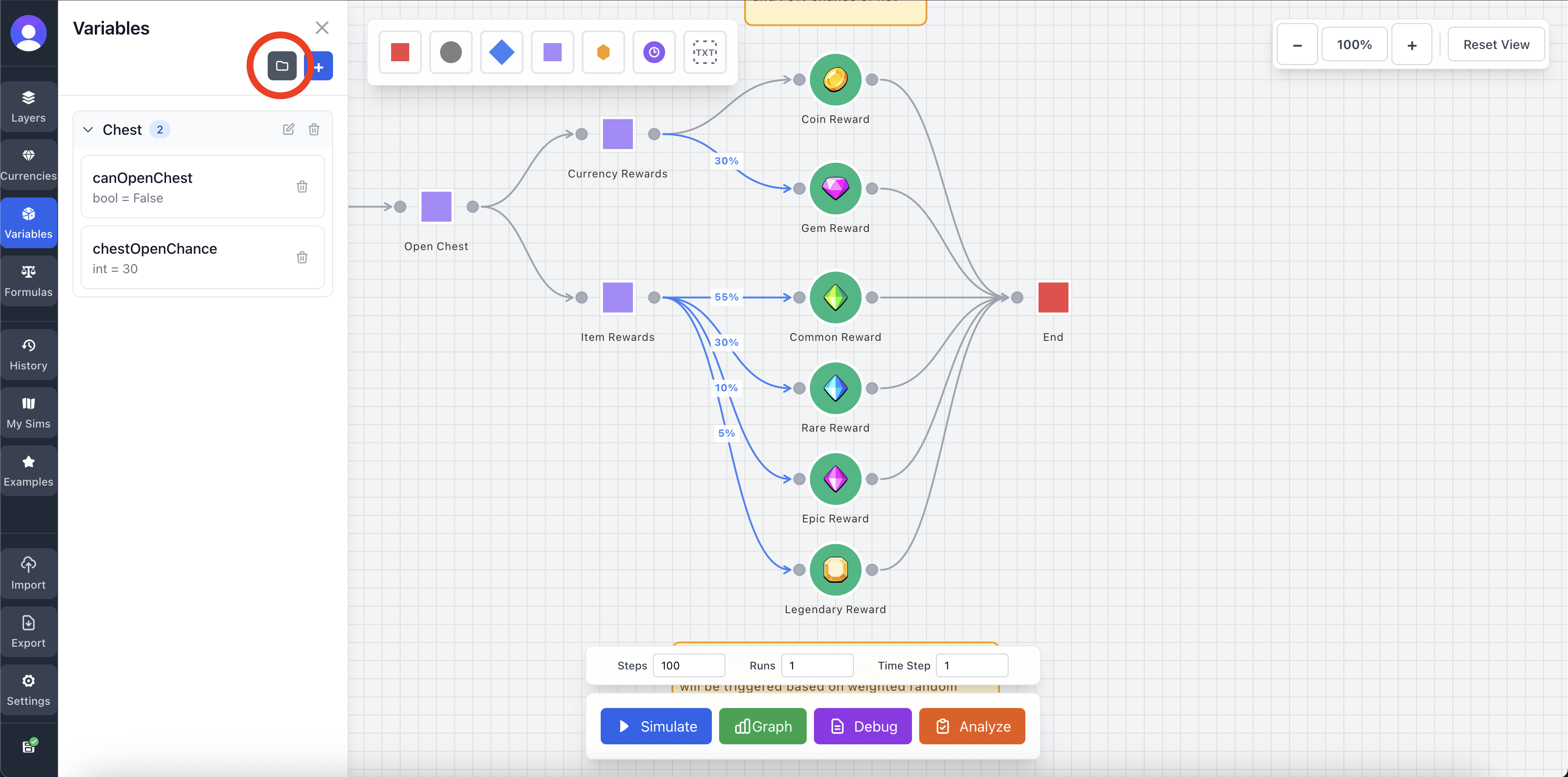
You can create folders to help organize all of your Variables. This is fairly straight forward and you can create the folder by clicking the folder button.
Variables & Input Fields
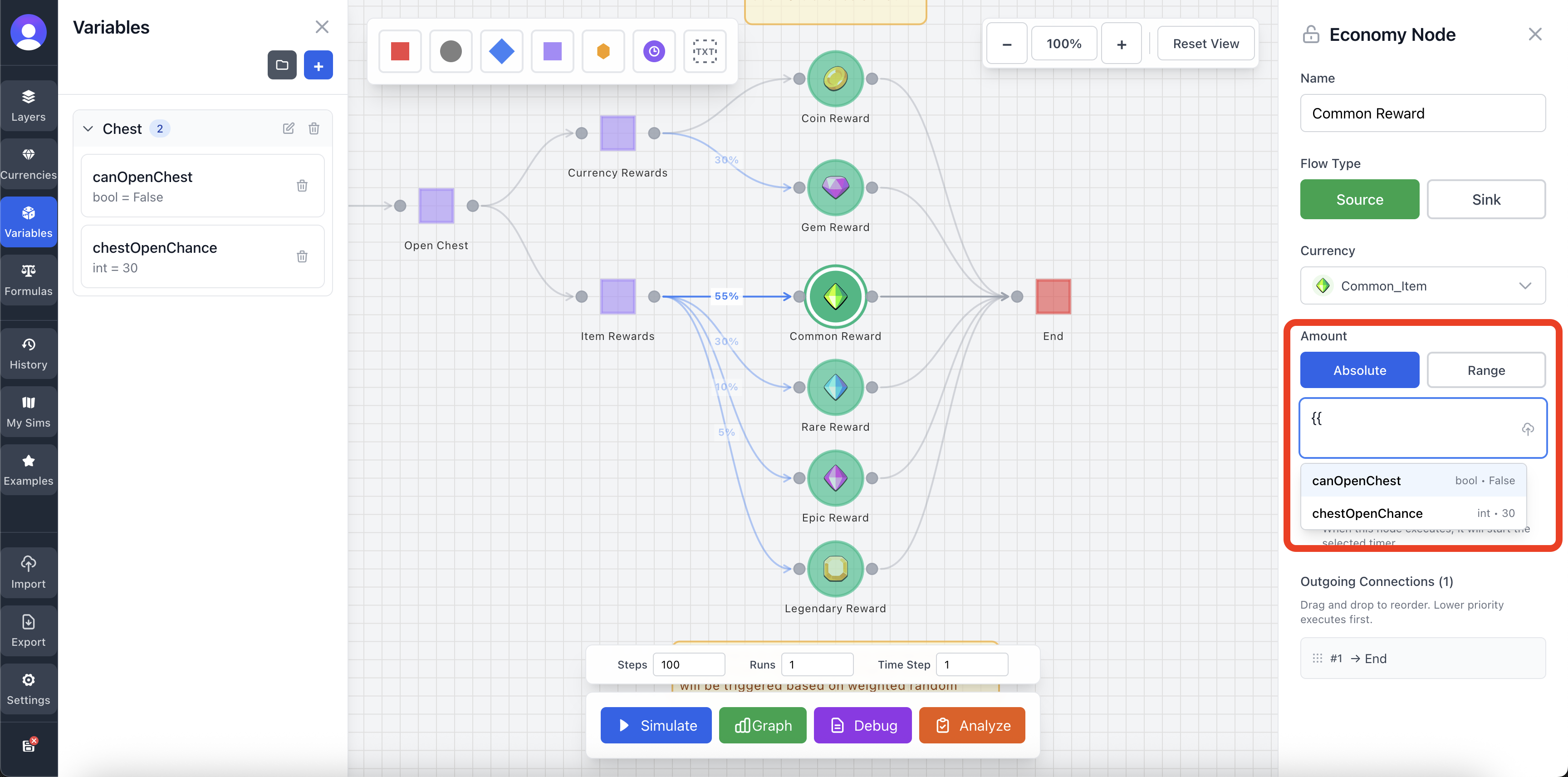
One of the more powerful features of variables is the ability to use them in input fields in other Nodes and Connections. This can be done by writing {{variableName}}. As you start writing, a dropdown will appear for easy selection. Alternatively, you can press the icon in the far right of an input field to add a variable.
When using a variable like this, the current value of the variable will be used. Any changes made to the variable will carry over into the amount.
Inspector Fields
Each field below is available when creating or editing a variable in the Variable Inspector.
Unique identifier for the variable. Auto-generated from name. Cannot be changed once set. Must be unique across all variables.
Display name shown in the UI. Must be unique and case-sensitive. Should be descriptive (e.g., "playerLevel", "health", "questCompleted").
The data type of the variable. Determines what values can be stored and what operations are available.
Initial/default value of the variable. For bool: true (1) or false (0). For int: any whole number. For array: array of numbers (e.g., [10, 20, 30]).
Optional organization folder ID. Used to group variables together in the Variable Inspector for better organization.