Formulas are a powerful feature allowing you to pre-configure formulas for easy reference in input fields. You can tie a formula to the value of a currency or, more preferably, a variable. A Formula can be referenced in an input field by using [[formulaName]].
Formulas Inspector
The inspector can be opened by clicking the Formulas button in the left-hand side of the screen. This will present you with an overview of all the formulas in your workspace.
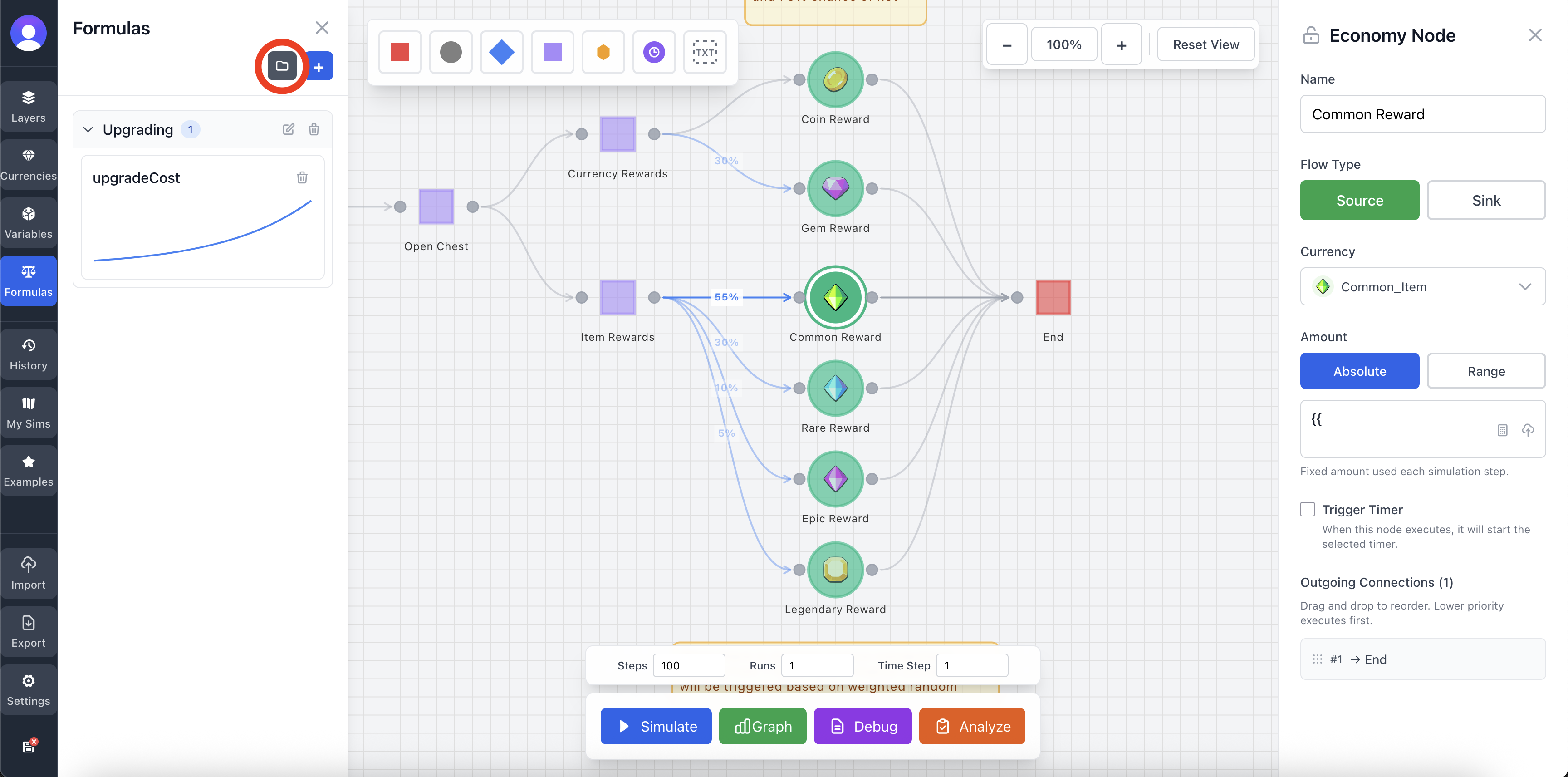
Create a Formula
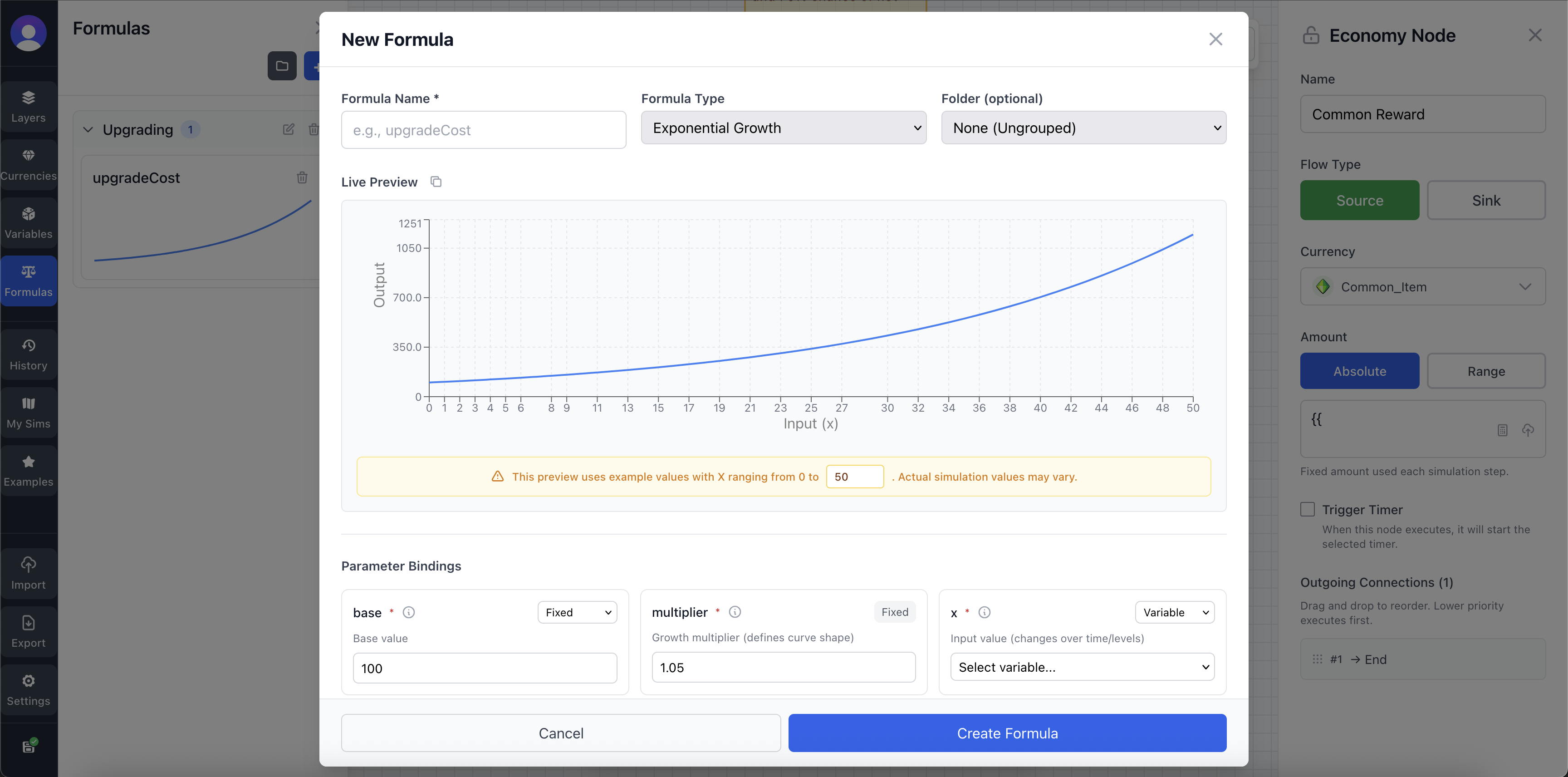
To add a formula simply press the "+" button in the Formulas Inspector. This will bring up the "Create Formula" Screen. Simply add the desired settings and click Create at the bottom-right.
Editing Formulas
You can edit the formula, which will show the "Edit Formula" screen by clicking a formula card in the Formula Inspector.
Organizing Formulas
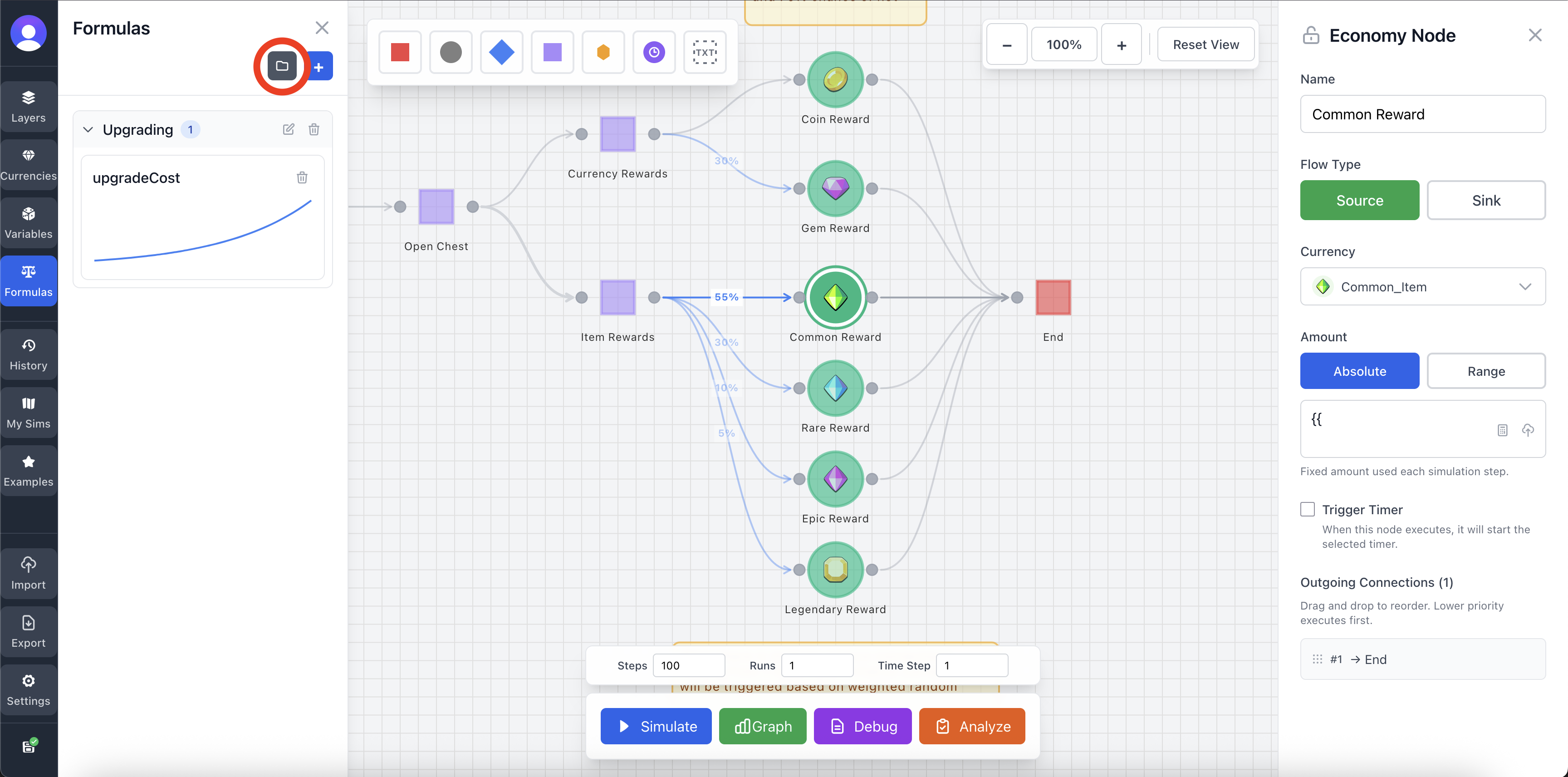
You can create folders to help organize all of your Formulas. This is fairly straight forward and you can create the folder by clicking the folder button.
Formulas & Input Fields
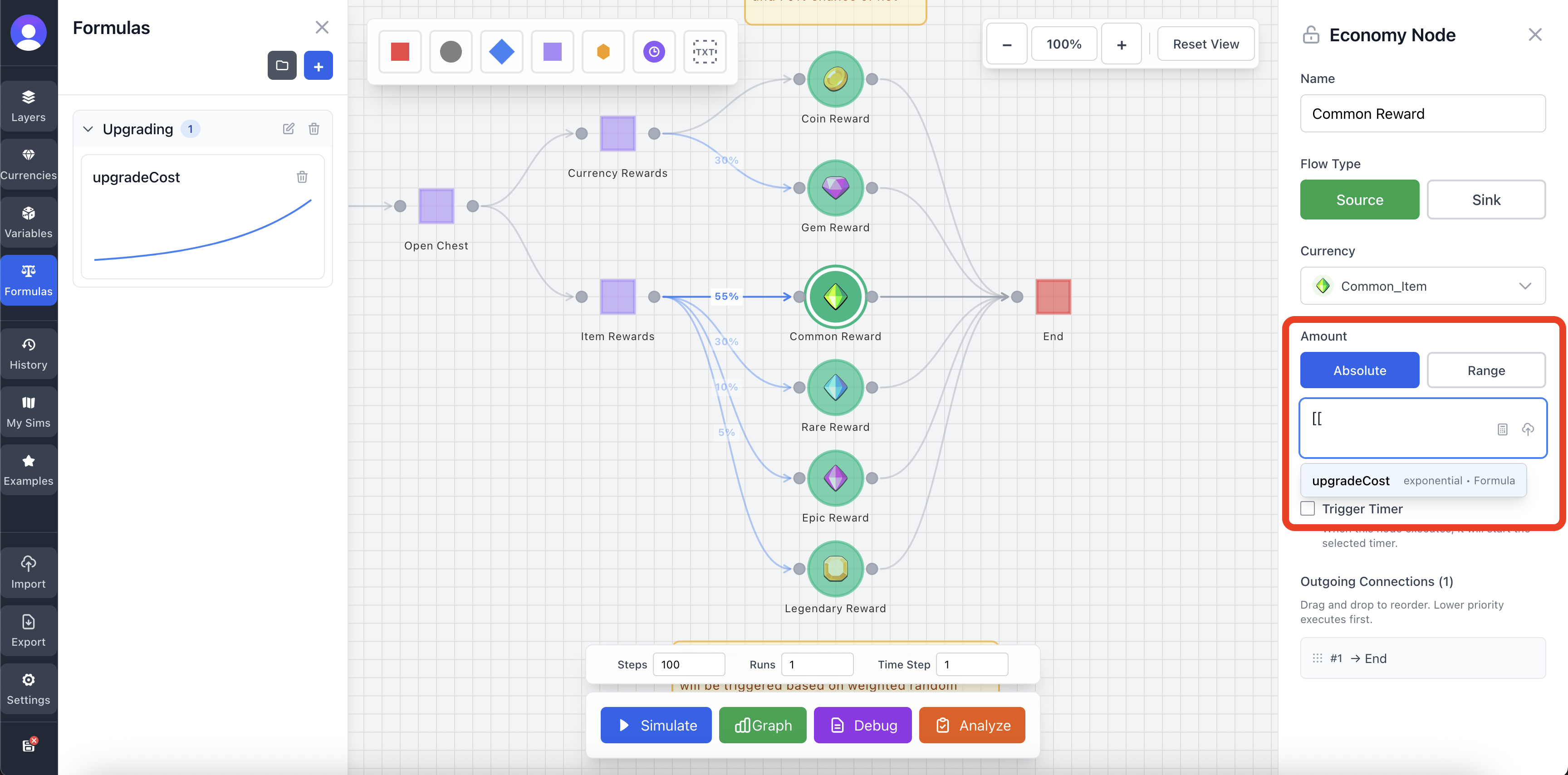
One of the more powerful features of formulas is the ability to use them in input fields in other Nodes and Connections. This can be done by writing [[formulaName]]. As you start writing, a dropdown will appear for easy selection. Alternatively, you can press the icon in the far right of an input field to add a formula.
When using a formula like this, the current value of the formula will be used.
Inspector Fields
Each field below is available when creating or editing a formula in the Formula Inspector.
Unique identifier for the formula. Auto-generated from name. Cannot be changed once set. Must be unique across all formulas.
Display name shown in the UI. Must be unique and case-sensitive. Should be descriptive (e.g., "upgradeCost", "damageCalculation", "experienceCurve").
The formula type/preset. Determines the base expression structure and available parameters.
The mathematical expression that defines the formula. Can use parameters, variables, currencies, and mathematical operators (+, -, *, /, ^, log, exp, etc.).
Array of parameter bindings that define how each parameter in the expression is resolved. Each binding has: name (parameter name), type (fixed/variable/currency), value (for fixed), variableName (for variable type), currencyId (for currency type), description, and required flag.
Each parameter binding determines how a parameter in the expression gets its value. Fixed bindings use constant numbers, variable bindings reference variable values using {{variableName}}, and currency bindings reference current currency values.
Preview X range for the formula graph (0 to steps). Default is 50. Used for visualizing the formula curve.
Optional organization folder ID. Used to group formulas together in the Formula Inspector for better organization.
Optional description of what the formula does and when to use it. Helps document your formulas for future reference.